
- Data Pattern Shape: The arrangement of the small black and white squares (modules) that encode the actual data within a QR code. The shape can be modified for visual appeal while maintaining readability.
- Data Pattern Color: The color used for the modules that represent the encoded data in a QR code. Typically black, but can be customized with different colors (either solid or gradient) for aesthetic purposes.
- Eye Pattern: The three large squares located at the corners of a QR code help scanners determine the code’s orientation. These patterns are essential for accurate scanning.
- Eye Pattern Color: The color used for the eye patterns. While traditionally black, these can be customized, but must remain distinct from the data pattern and background.
- Logo: An image or design placed in the center of the QR code to enhance branding.
- QR Code Background: The color or image behind the QR code. A plain, contrasting background color ensures the code’s readability. It can also be made transparent.
- Padding or Quiet Zone: The empty margin surrounding a QR code, free from any patterns or designs. This clear space ensures that scanners can accurately detect and read the QR code.
- Error Correction Level: A feature of QR codes that allows them to be read even if part of the code is damaged or obscured. There are four levels (L, M, Q, H), with H providing the highest error correction but reducing data capacity.
- Frames: Decorative borders or designs around the QR code that can enhance its visual appeal and make it stand out. Some frames support custom text that can be displayed within the frame design.
Pattern Info Overview
Thepattern_info object lets you customize the visual appearance of a QR Code generated via the Scanova API. It is optional. Use it to control data-patterns, gradients, colors, corner “eye” shapes, frames, and error-correction level.
Top-level Structure
Example
Field Reference
dataInfo — Pattern & gradient settings
- Type:
object
Properties
pattern—string— pattern style for QR data area.- Possible values:
"Default","Round","RoundedCorners","RotatedSquares","connectedCircles","Newone1","Newone3","circularDiagonal","lightCircle","lightSquare","lightRoundedCorners","lightCircleInSquare" - See Data Pattern section in Design Assets tab for visual examples.
- Possible values:
gradientStyle—string— gradient color direction.- Possible Values:
None,Horizontal,Vertical,Diagnoal,Radial
- Possible Values:
startColor—string— hex color#RRGGBB(start color for gradient)endColor—string— hex color#RRGGBB(end color for gradient, will be ignored in caseNoneis used)logo—string | null— URL to a logo image to embed in center (ornull). With logos you can change the size, angle and also add a stroke. A stroke is a border around the logo/image. You can determine the color of the stroke and its width. ‘Excavated’ key is used to determine whether to remove or keep the data patterns behind the logo image itself.
Note: For logo, you can use one of the pre-designed images provided by Scanova or use any of your own images. Scanova provides 2 types of pre-design images: Logos & Icons. You can change the color of the icons, but not of logos or your own uploaded images.For a complete list of available pre-designed logos and icons, visit the Scanova application or contact support.

backGroundColor
- Type:
string - Description: Background color of the QR code canvas. Hex format
#RRGGBBor#RGB. To make the background transparent, keep the value blank
eyeInfo — Corner eyes appearance
- Type:
object - Description: Mandatory field. Controls the three finder/corner “eyes” (Top-Left
TL, Top-RightTR, Bottom-LeftBL). You can customize the overall shape of the eye, and the colors of the inner eye and outer eye separately.
TL, TR, BL:
innerEyeColor—string— inner eye hex colorouterEyeColor—string— outer eye hex colorshape—string— eye shape.- Possible values:
Shape0(Square),Shape1(Rounded Square),Shape2(Circle inside a Square),Shape3(Circle inside a Rounded Square),Shape4(Circle),Shape5,Shape6,Shape7,Shape8,Shape9,Shape10,Shape15 - See Eye Shapes section in Design Assets tab for visual examples.
- Possible values:
errorCorrection
- Type:
string - Description: Mandatory field. QR error-correction level. Raising the level increases damage tolerance but also makes the QR Code denser.
Values:
| Level | Correction | Notes | Preview |
|---|---|---|---|
json "errorCorrection": "L" | ~7% | Smallest size, simplest designs |  |
json "errorCorrection": "M" | ~15% | Balanced (default) | 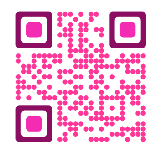 |
json "errorCorrection": "Q" | ~25% | Good for branded codes | 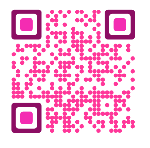 |
json "errorCorrection": "H" | ~30% | Best when using logos/complex designs |  |
padding
- Type:
string - Description: This is mandatory. User padding to pass the value of the empty margin surrounding a QR code. The value can range from 0 to 12, and the default value is 8. It is recommended to keep this value to at least 4 or above.
- Values: 0 to 12
Padding Examples
| Padding | Description | Preview |
|---|---|---|
4 | Minimal quiet zone |  |
8 | Standard quiet zone (default) | 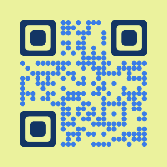 |
version
- Type:
string - Description: QR code version (affects modules/size/data capacity).
- Allowed:
"1.0"→"1.5"(default"1.5").
type
- Type:
string - Description: Fixed. Must be
"qrcode".
frame — Frame/badge around QR code
-
Type:
object - Description: This is optional. You can use the combination of frame.id and frame.category to add a pre-designed frame around the QR Code. Depending on the frame design you can change the primary color, secondary color, and text color. Some frames might not have text color, secondary color or even primary color, in which case these values would be set to null. You can also change the background color, which refers to the just area behind the QR Code in the frame design. Note, this is different from the background color mentioned above which refers to the whole area behind the QR Code including the frame and the padding (quiet zone). Custom Frame Text: Some frames support customizable text that can be displayed within the frame. This allows you to add call-to-action text, instructions, or branding messages directly on the frame.
-
Properties:
id—integer— frame style id (1..5)primaryColor—string— hex colorsecondaryColor—string | null— hex ornull(for two-tone frames)textColor—string— color for any text in framebgColor—string— frame background colorcategory—string— example:"url","location","document"
See Design Assets tab for a complete list of all available frames and their details.
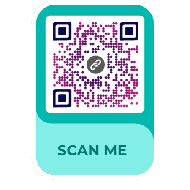
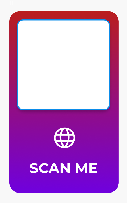
Frames Supporting Custom Text: Currently, the following frames support custom text functionality:
- businessCard: Frame ID
1 - document: Frame ID
3 - dynamicVCard: Frame ID
1 - feedback: Frame ID
3 - map: Frame ID
6 - url: Frame ID
10
textConfig property will be ignored.Text Configuration Properties:text—string— The text content to display in the frame. Can be empty string""to hide text.placement—string— Text placement within the frame bounds. Possible values:"center","top","bottom","left","right","top-left","top-right","bottom-left","bottom-right". Default:"center".color—string | null— Optional. Text color in hex format#RRGGBB. If not provided, usesframe.textColoras fallback.fontFamily—string— Font family for the text. Available fonts:"Montserrat","Inter","Arial","Roboto","Noto Sans","Times New Roman","Brush Script MT","Raleway","Porsche Next","Porsche Next Thin","Porsche Next Bold","American Typewriter","Bungasai","Copperplate". Default:"Montserrat".fontSize—number | null— Optional. Font size in pixels. If not provided, the system will automatically size the text to fit within the frame’s text bounds.
fontSize is not provided, the system will automatically adjust the text size to fit within the frame’s text bounds. The text will wrap to multiple lines if needed, and the font size will be reduced if necessary to ensure the text fits within the available space.Example Configurations
Minimal Configuration (clean, high-contrast)
Branded (gradient+logo)
High Contrast (scanner-friendly)
Frame with Custom Text Example
Usage in API Requests
Includepattern_info as a JSON object in the request body. If you must send it as a string (some SDKs or form clients require this), serialize it (JSON.stringify).
Object (preferred):
Examplecurl(serializedpattern_infofor compatibility):
Design Tips
Best Practices:
- Contrast first: Use high contrast between data pattern and background (e.g., black on white). Low contrast reduces scannability.
- Logo size: Keep logos ≤ 30% of QR area. Larger logos require higher
errorCorrectionand still may fail on some scanners. - Test on devices: Verify scanning on multiple phones and popular scanning apps.
- Error correction tradeoff: Higher
errorCorrection(Q/H) improves resilience but increases code complexity and may affect readability at small sizes. - Avoid busy backgrounds: Complex background images or patterns behind the QR region reduce scanner reliability.
- Color fallbacks: If using gradients, ensure the start/end colors maintain contrast against background.
- Frame text: When using custom frame text, keep the text concise and clear. The system will automatically adjust font size to fit, but shorter text generally looks better and is more readable.
Validation Checklist (before request)
- All hex values follow
#RRGGBBor#RGB. typeis"qrcode"andversionwithin allowed range.- If using
logo, the URL is reachable (HTTPS preferred). errorCorrectionis chosen based on logo/styling needs.pattern_infois valid JSON (or properly serialized string) and not empty- If using
frame.textConfig, ensure the frame supports custom text (see frame list above). - If using
frame.textConfig.fontFamily, ensure the font name matches one of the available fonts exactly (case-insensitive). - If using
frame.textConfig.placement, ensure the value is one of the allowed placement options.